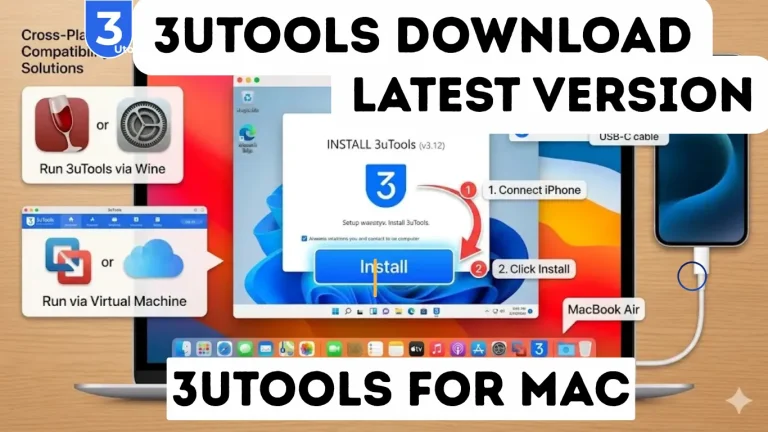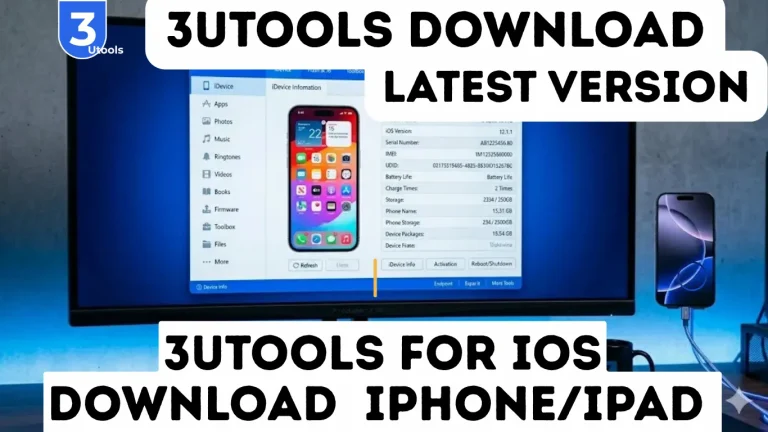
3uTools for PC Download and Install Software Windows
3uTools for PC is a powerful and free tool for managing iPhone, iPad, and iPod Touch on Windows. Unlike iTunes, it offers advanced features like firmware flashing, backup and restore, app management, battery diagnostics, photo transfer, ringtone creation, and device authenticity checks. It is useful for both beginners and advanced users who want full control over their iOS devices.
What Are 3uTools for PC?
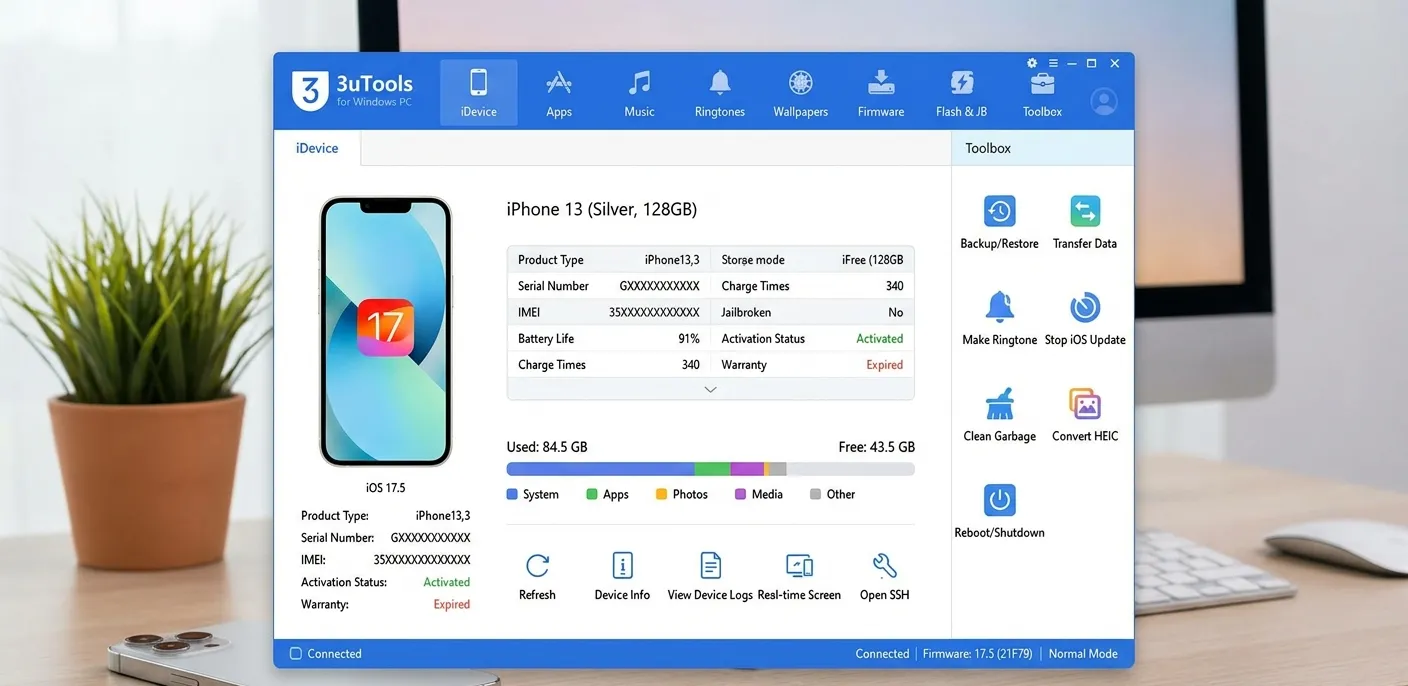
3uTools for PC is a free Windows application designed to help users manage and maintain their iOS devices from a single dashboard. It works with almost all Apple Inc. devices, including the iPhone, iPad, and iPod Touch.
The software offers a wide range of features such as backup and restore, firmware downloads, iOS flashing, battery health checks, app installation, photo and video transfer, device diagnostics, jailbreak support, and data migration.
By combining all of these tools into one easy-to-use interface, 3uTools makes it simple for users to update, troubleshoot, customize, and optimize their Apple devices directly from their PC.
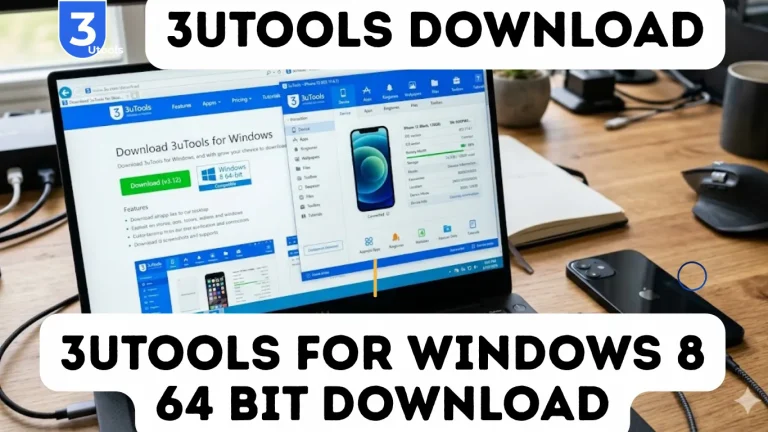
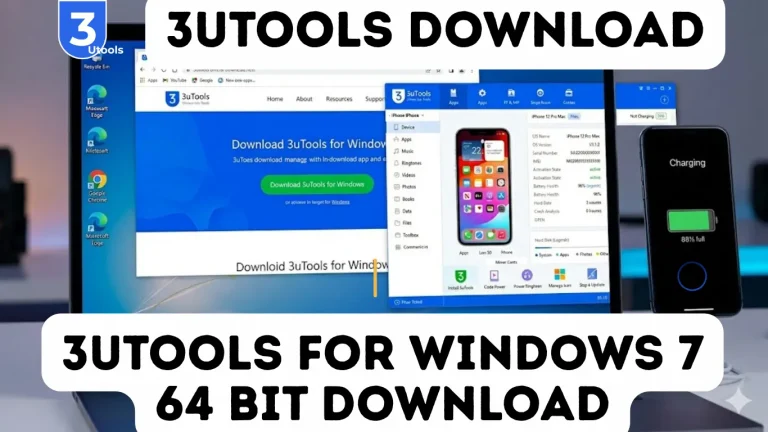
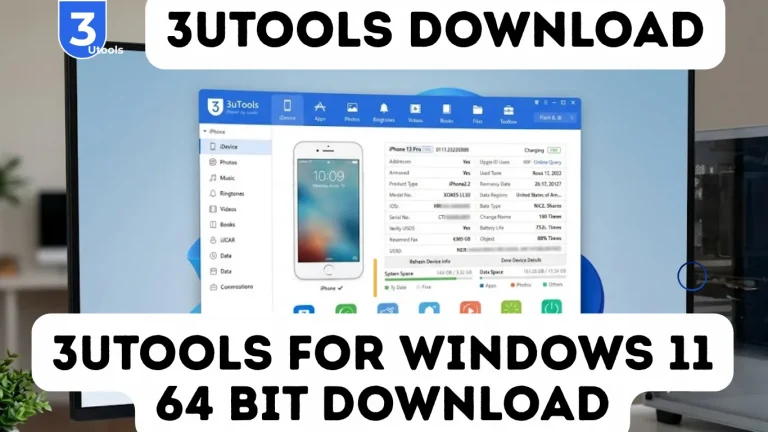
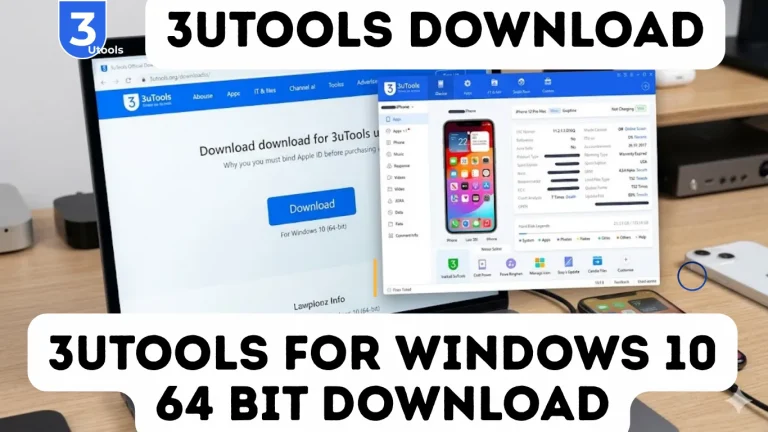
Looking for the latest 3uTools setup file? Get it here: 3utools Download
System Requirements for 3uTools for PC
System Requirements for 3uTools for PC
Before installing 3uTools, make sure your computer meets these requirements.
Minimum Requirements
Recommended Requirements
Features of 3uTools for PC
1. Device Information Dashboard:
- Device model
- Serial number
- IMEI
- Storage usage
- iOS version
- Activation status
- Battery health
- Warranty information
- Jailbreak status
- Backup and Restore: Create full or selective backups and restore them whenever needed.
- Smart Flash: Automatically downloads and installs the correct IPSW firmware.
- Easy Flash: A simplified flashing method suitable for beginners.
- Pro Flash: Advanced flashing options for experienced users.
- Firmware Download: Download official Apple firmware files directly.
- Jailbreak Support: Access compatible jailbreak tools.
- App Management: Install and uninstall apps and IPA files.
- Photo and Video Transfer: Import and export media between your device and PC.
- Ringtone Maker: Create custom iPhone ringtones from MP3 files.
- Battery Diagnostics: View charge cycles, design capacity, and health percentage.
- Device Authenticity Check: Detects replaced parts such as batteries and screens.
How to Download 3uTools for PC
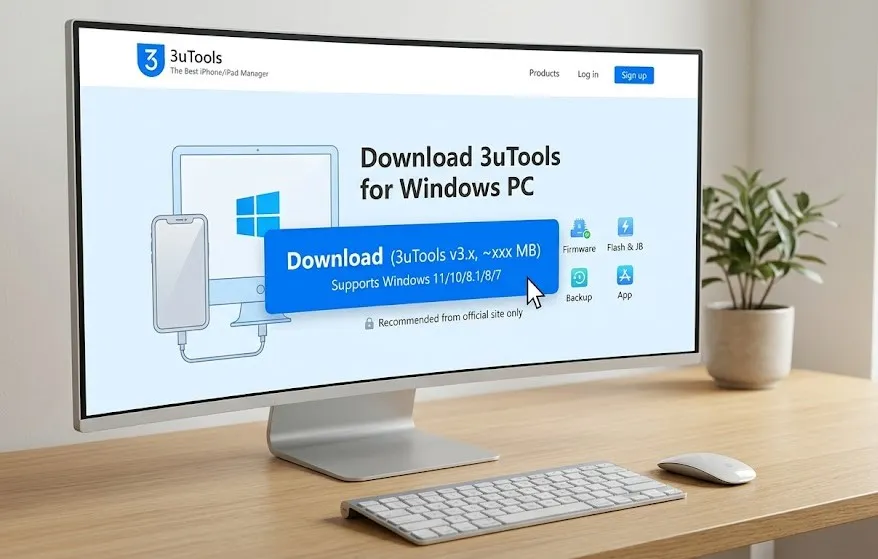
To ensure safety, download 3uTools only from its official website.
Download Steps
- Visit the official 3uTools website.
- Click the Download button.
- Save the installer to your PC.
- Run the setup file.
How to Restore a Backup
- Open Backup/Restore.
- Select the backup file.
- Click Restore.
- Wait for completion.
Why 3uTools for PC Is So Popular
3uTools has become extremely popular because it offers features that are usually found only in paid software.
Resolve Phone Not Detected in Computer Disk List (Driver Reinstallation Method)
If your phone is not detected in your computer’s disk or file list, reinstalling the casting driver can usually solve the issue. Follow these steps carefully:
Step 1: Open Driver Management
Open 3uAirPlayer on your PC.
Click the three-line menu (top right corner) and select Driver Management to open the driver settings page.
Step 2: Uninstall Existing Android Wired Casting Driver
On the Driver Management screen, find Android Wired Casting Driver.
Click the Uninstall button on the right side and follow the instructions to completely remove the driver from your system.
Step 3: Reconnect Your Phone & Reinstall Driver
After uninstalling the driver:
Step 4: Check Device Detection
After installation is complete:
Step 5: Restart if Still Not Detected
If your phone still does not show up:
Supported Apple Devices
3uTools for PC supports a wide range of Apple devices.
Supported iPhone Models
- iPhone 6 and newer
- iPhone SE series
- iPhone 7, 8, and X
- iPhone XR, XS, and XS Max
- iPhone 11 through iPhone 16 series
Supported iPad Models
- iPad mini
- iPad Air
- iPad Pro
- Standard iPad
Supported iPod Models
- iPod Touch (multiple generations)
How to Flash iOS Firmware with 3uTools
Firmware flashing reinstalls or updates iOS.
Common Reasons to Flash
- iPhone stuck on Apple logo
- Recovery mode issues
- Boot loop
- Failed update
- Software corruption
Flashing Steps
- Open Flash & JB.
- Select firmware.
- Choose Smart Flash.
- Click Flash.
- Wait until the device restarts.
Smart Flash vs Easy Flash vs Pro Flash (3uTools)
Feature | Description |
Smart Flash | Automatically selects the best firmware and settings for your device |
Easy Flash | One-click flashing option designed for beginners |
Pro Flash | Advanced flashing mode with full customization options |
Advantages of 3uTools for PC
- Free software
- Powerful all-in-one toolkit
- Beginner-friendly interface
- Supports most Apple devices
- Frequent updates
- Professional diagnostics
Who Should Use 3uTools for PC?
Everyday Users
For backups, media transfer, and battery checks.
Mobile Technicians
For flashing, diagnostics, and authenticity checks.
Developers
For app installation and log analysis.
Resellers
For verifying used iPhones.
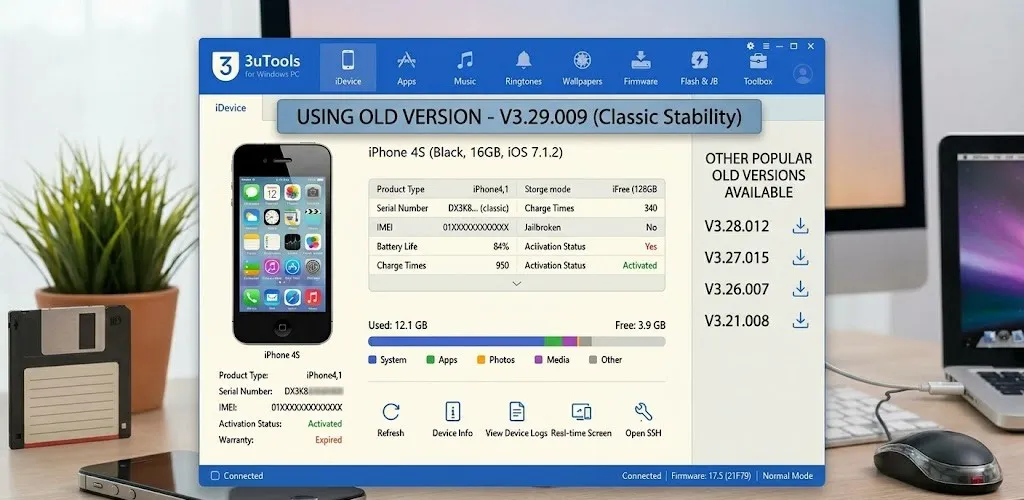
3uTools for PC Old Version
Old version of 3uTools for PC is useful for users who have compatibility issues with the latest update or are using older Windows systems. These versions can be downloaded from trusted software archive websites that provide previous releases. Many users prefer older versions because they are more stable, lightweight, and sometimes work better with older iOS devices. However, it is important to always download from safe and trusted sources to avoid any security risks or modified files.
Popular Old Versions Available
- 3uTools 3.29.009
- 3uTools 3.28.012
- 3uTools 3.27.015
- 3uTools 3.26.007
- 3uTools 3.21.008
3uTools for PC Download (Windows)
You can download 3uTools for Windows PC from its official website. It is a free tool used to manage iPhone, iPad, and iPod devices on a computer.
Download 3uTools for Windows
- Visit the official 3uTools download page
- Choose Windows 32-bit or 64-bit version
- Click Download and wait for the file to finish downloading
- File size is around 180–200 MB depending on version
System Support
- Windows 7
- Windows 8
- Windows 10
- Windows 11
How to Mirror Windows PC to Android Device
Screen mirroring between a Windows PC and an Android device has become easier with modern tools like 3uAirPlayer. It is designed for users who want smooth streaming, presentations, and real-time screen sharing.
This guide explains how to mirror your Windows PC to an Android device and also how casting works between devices.
Mirror Windows PC to Android Device
Follow these steps to cast your 3uTools for PC screen:
- Ensure both Windows PC and Android device are connected to the same network (Wi-Fi or LAN)
- Open 3uAirPlayer on your Android device
- Find the Cast Code displayed on the Android screen
- On your Windows PC client, enter the Cast Code
- Click Start Casting
Your Windows screen will now appear on your Android device in real time.
How to Get IPCC File from iPhone Firmware
To extract an IPCC file from iPhone firmware, first install TransMac on your Windows PC and download the required iOS firmware using 3uTools from the Flash & JB section. After the firmware is downloaded, locate it in the Downloads folder, open the folder, and copy the file path. Then open TransMac, go to “File → Open Disk Image,” paste the path, and select the largest file to load it. Next, navigate to System → Library → Carrier Bundles → iPhone, find your carrier bundle, and copy it to the desktop. Finally, compress the folder into a ZIP file and rename the extension from .zip to .ipcc to get the final IPCC file.
Import Video from PC to iPhone
Download and install 3uTools on your PC, Connect your iPhone to PC using a USB cable, Unlock your iPhone and tap Trust This Computer if asked
Import PDF / eBooks from PC to iPhone iBooks
Install iBooks on your iPhone/iPad. Download and open 3uTools on your PC. Connect your iPhone to PC using a USB cable
Old Snapchat UI on iOS 11–11.1.2
- Works only on iOS 11.0 to 11.1.2 devices
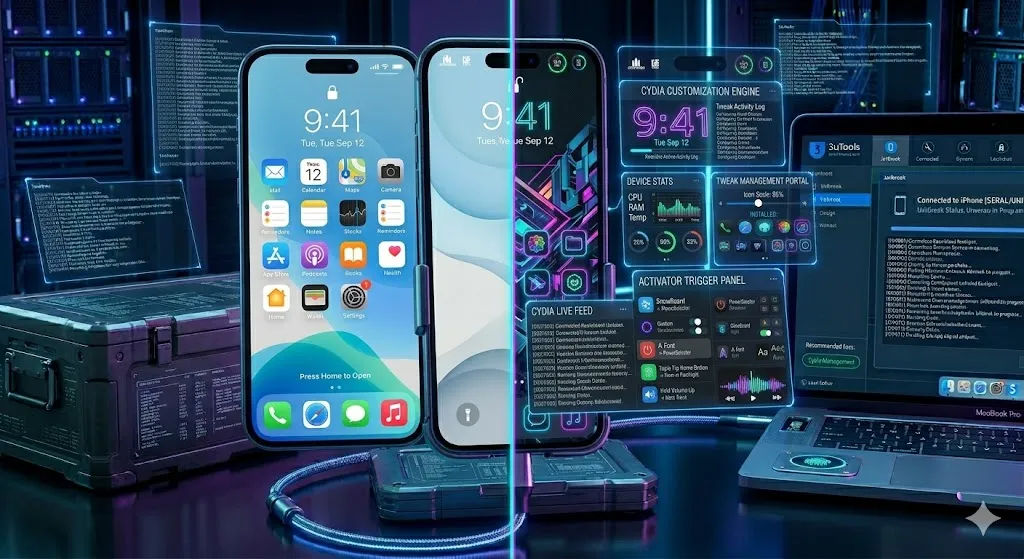
- Requires a jailbroken iPhone (e.g., Electra jailbreak)
- Uses a PC tool like Cydia Impactor to sideload apps
- Needs an older Snapchat IPA file (legacy version)
- Current Snapchat app must be removed first
- Old version is manually installed on the device
- Jailbreak tweaks may be used for compatibility
- Final result is running an outdated Snapchat interface
Important Note
- May break notifications and app features
- Not supported by Snapchat or Apple
- Only works on very old iOS versions
How to Enable Wi-Fi Connection in 3uTools for PC?
Connect your iPhone/iPad to PC using a USB cable. Open iTunes on your computer. Click your iDevice icon
- Turn on Wi-Fi Sync: Enable the option “Sync with this iPhone over Wi-Fi” Click Sync and wait until process is complete, You can disable it later by unchecking the same option in iTunes
- Enable Wi-Fi Connection in 3uTools: Make sure both PC and iPhone are connected to the same Wi-Fi network, Open 3uTools, Go to Toolbox, Turn ON Wi-Fi Connection option
- Restart and Connect: Restart 3uTools, Your iPhone will automatically connect via Wi-Fi
- Important Note: Some features like flash and jailbreak are not available in Wi-Fi mode, USB connection is more stable for advanced tasks
How to View & Extract Safari Bookmarks From iTunes Backups Using 3uTools?
You can extract Safari bookmarks from backups like this:
- Open 3uTools on your PC
- Connect device or load iTunes backup
- Go to Backup/Restore Data section
- Select Safari Bookmarks
- Click View or Export
- Save data to your computer
Pros
Cons
Conclusion
3uTools for PC is a powerful all-in-one iOS device management tool for Windows users that makes it easy to control and manage iPhone, iPad, and iPod Touch devices from a single platform. With features like firmware flashing, backup and restore, file transfer, battery diagnostics, and app management, it offers far more functionality than traditional tools like iTunes.
Even if you are a beginner user or a professional technician, 3uTools for PC provides a simple, fast, and reliable way to manage Apple devices. It also supports advanced tasks such as Smart Flash, Pro Flash, jailbreak support, and device authenticity checks, making it a complete toolkit for iOS maintenance.
However, users should always download it from the official source and use features carefully, especially advanced options like flashing or jailbreak, to avoid any data loss or device issues.
Overall, 3uTools for PC remains one of the most popular and trusted utilities for iOS device management on Windows.