3uTools for Android Features, Alternatives, and Truth Explained
Many people love using 3uTools for their iPhones. It is a very famous tool for Apple users. You might wonder if you can use it for Android. This blog post will explain everything about 3uTools for Android. We will look at features, tools, and the best alternatives.
Does Official 3uTools Work for Android?
The short answer is no. There is no full version of 3uTools for Android. The main 3uTools software is only for iOS devices. Android phones use different software and different system drivers. However, the 3uTools team made a few special apps. These apps help Android users connect to their computers.
This happens because Android is an open system with many brands, making it difficult to create one universal tool like 3uTools.
Each Android manufacturer uses different software systems, which means tools must be designed separately for Samsung, Xiaomi, Oppo, and other brands.
Why Android Does Not Have a Single Tool Like 3uTools
Android devices are made by many companies, and each company uses different firmware, drivers, and security systems for their smartphones and tablets.
Because of this, one tool cannot support all Android devices easily, unlike iOS devices, which are controlled by a single company.
This difference makes it hard to build a universal tool like 3uTools that works perfectly across all Android phones and versions.
Features of 3uTools Apps for Android
3uAirPlayer for Screen Mirroring
You can show your Android screen on a PC. This is called screen mirroring. It works with very low lag or delay. You can use it for games or movies. It supports high-quality video for a better view.
3uRemote for Remote Access
This tool lets you control your computer from afar. You can see your PC screen on your phone. It is very safe and uses secure codes. You can wake up your computer from another room.
Data Transfer Tools
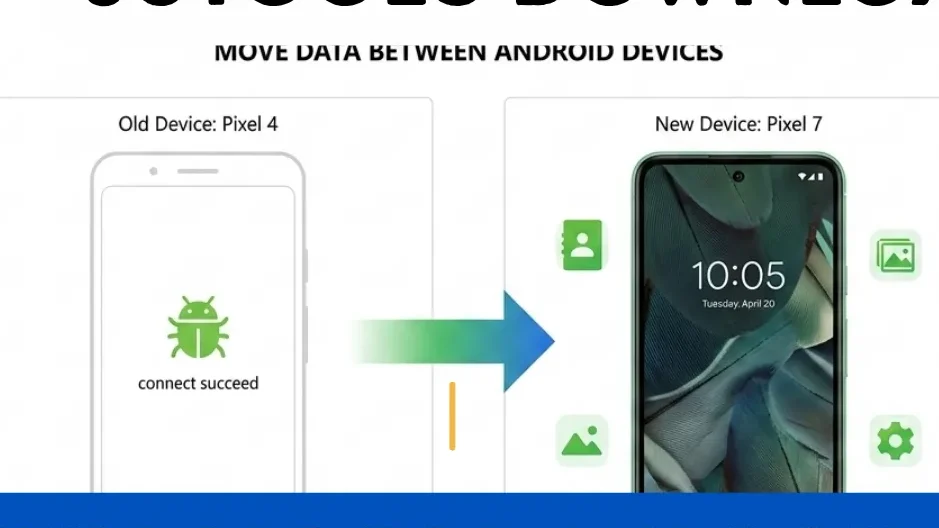
3uTools can move data from Android to iOS. You connect both phones to your Windows PC. Then you can move photos and contacts easily. This makes switching to a new iPhone very fast.
How to Use 3uAirPlayer on Android
Using this tool is very simple for students. Follow these easy steps to get started now.
It is especially useful for:
Connect to Wi-Fi
Put your phone and PC on one network
Open the App
Launch 3uAirPlayer on your Android device.
Enter the Code
Type the 6-digit code into your computer.
Allow Access
Click “Allow” on your PC screen pop-up.
Enjoy the View
Your phone screen now shows on PC.
How to Choose the Best Android Tool
Choosing the right tool depends on your device brand, purpose, and experience level with Android system tools and software operations.
Tips for Selection
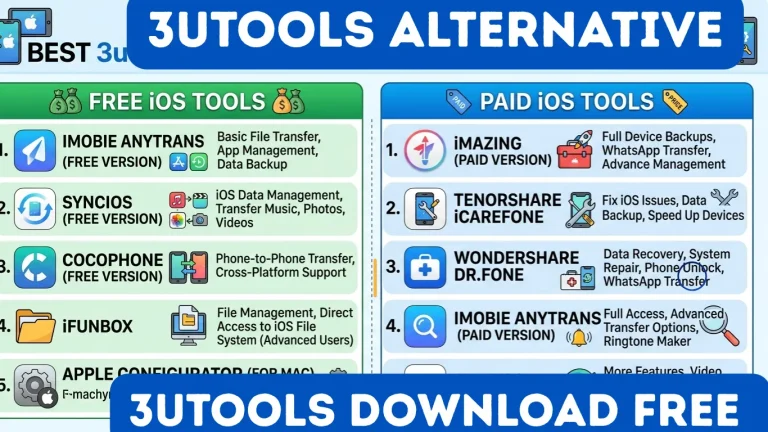
Available 3uTools Android Alternatives
Even though 3uTools is not available for Android, many alternative tools provide similar features for Android device management and repair tasks.
Best Alternatives Table
Tool Name | Main Feature |
|---|---|
Tenorshare ReiBoot | System repair |
Dr.Fone Toolkit | Data recovery and transfer |
Odin Tool | Firmware flashing |
Xiaomi Flash Tool | Flash ROM |
ADB Tools | Command-based control |
Common Issues Users Face
Many users experience problems while using Android management tools, especially when they do not follow proper instructions carefully.
Common Problems
How to Transfer Data from Android to iOS Using 3uTools
You cannot manage Android, but you can move data. The main 3uTools program for PC has a migration tool. This is great for new iPhone users. Here are the simple steps to follow.
- Open 3uTools on PC: Launch the software on your Windows computer.
- Connect Both Phones: Plug in both your Android and your new iPhone.
- Choose “Toolbox”: Click on the section that says Toolbox.
- Find “Transfer Data”: Look for the data migration button and click it.
- Select Your Data: Choose the items you want to move, like contacts.
- Start the Process: Click the button to begin the file transfer.
- Wait Patiently: Do not unplug any cables until the tool finishes.
Differences Between iOS and Android Tools
Feature | 3uTools (iOS) |
|---|---|
Flashing Firmware | Very simple and guided |
App Management | Direct from 3uTools app |
System Repair | Specific iOS fixes |
Unlocking Tools | Often built-in for free |
Connection Method | Standard Apple drivers |
Pros
Cons
Conclusion
3uTools is a powerful tool for iOS devices, but there is no official version available for Android users at this time.
Android users must rely on different tools depending on their device brand and specific needs for management, repair, and data transfer tasks.
By choosing the right tool and following proper steps, users can safely manage their Android devices and achieve results similar to 3uTools features.