How to Flash iPhone with 3uTools
3uTools is a powerful tool used to flash, update, and restore iOS devices like iPhone. It works by detecting the device in Recovery or DFU mode and installing firmware through different flash options such as Quick Flash or Retain User Data.
This method is commonly used to fix boot loops, system crashes, and screen lock issues (but Apple ID may still be required after setup).
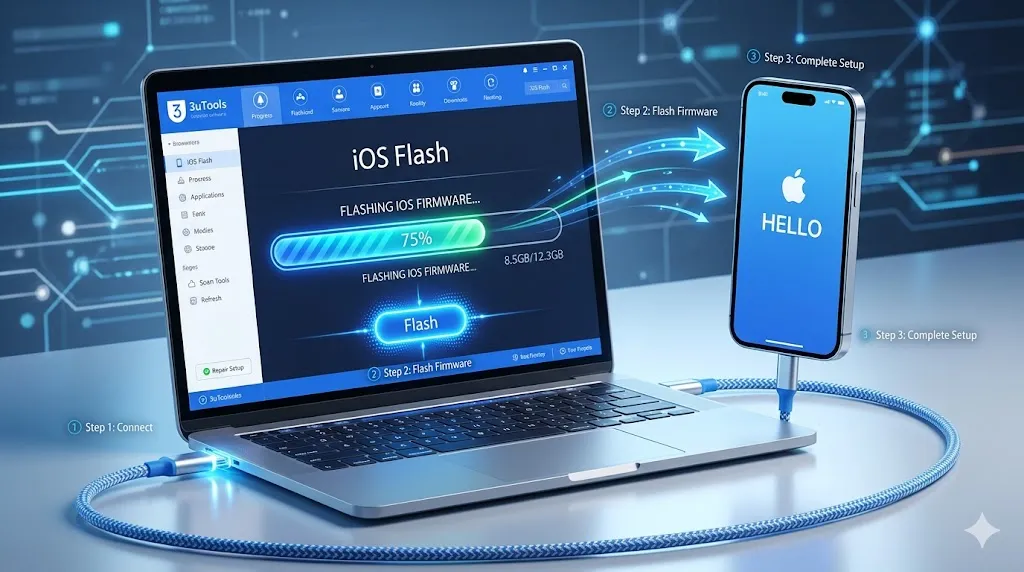
3uTools Flash Modes Explained
How to Fix and Flash Your iPhone: A Step-by-Step Guide Using 3uTools and AltFone
Is your iPhone stuck on the Apple logo? Are you experiencing constant system crashes, or perhaps you want to upgrade or downgrade your iOS version? Dealing with iOS system errors can be frustrating, but you don’t always need to visit an Apple Store to fix them.
Method 1: Flashing Your iPhone Using 3uTools
3uTools is one of the most popular all-in-one tools for iOS users. It allows you to “flash” your device, which essentially means performing a clean installation of the iOS firmware.
When to use this:
Step-by-Step Instructions:
1. Preparation and Installation First, download the latest version of 3uTools from its official website and install it on your PC. Once installed, launch the application and connect your iPhone to the computer using a high-quality USB cable.
2. Entering Recovery Mode For 3uTools to recognize the system state, you must put your iPhone into Recovery Mode manually.
- For iPhones without a Home Button: Quickly press and release the Volume Up button, then quickly press and release the Volume Down button. Finally, press and hold the Side (Power) button until the recovery mode screen (computer icon) appears.
3. Selecting the Firmware Once the software detects your phone is in recovery mode, click on the “Go Flash” button. Here, you will see a list of available iOS firmware versions compatible with your device. Select the one you want and click Download.
4. The Flashing ProcessImportant: Before you proceed, ensure you have a backup of your data, as flashing will wipe the device. After the firmware download is complete, click the “Flash” button at the bottom. 3uTools will now begin installing the fresh iOS. Do not disconnect your phone during this time. Once finished, your iPhone will restart automatically, and all software issues should be resolved.
Method 2: Repairing iOS Without Data Loss (AltFone iOS System Repair)
If you are worried about losing your photos, messages, and apps, AltFone iOS System Repair is the better alternative. This tool is designed to fix over 150+ iOS issues (like the spinning wheel or boot loops) while keeping your data intact.
Step-by-Step Instructions:
1. Connect and Launch Download and install the AltFone iOS System Repair tool. Open the program and connect your iPhone. One of the best features here is the “Enter Recovery Mode” button on the main dashboard one click and your phone enters recovery mode without you needing to press any hardware buttons.
2. Choose Standard Repair To fix your phone without deleting data, select “Standard Repair” from the main menu. This mode targets system glitches while preserving your personal information.
3. Download Firmware The software will automatically identify your iPhone model and suggest the necessary firmware. Click “Download” and wait for the package to be ready.
4. Start the Repair Once the download is finished, click “Start Standard Repair.” The tool will begin repairing the iOS system. Once the process bar reaches 100%, your phone will reboot normally, and your data will still be there.
5. Advanced Option: Deep Repair If the “Standard Repair” fails because the system damage is too severe, you can choose “Deep Repair.” Note that this will erase all data, similar to a factory reset, but it can fix even the most stubborn system errors.
When Should You 3uTools Flash an iPhone?
Flashing means reinstalling the operating system. It is useful when the device has serious software issues. Common situations include:
In these cases, flashing can restore the phone to normal functionality.
How to Flash iPhone That Is Locked
If your iPhone is disabled or locked due to multiple incorrect passcodes, flashing can restore the device.
Steps:
- Put the iPhone into recovery mode.
- Connect it to 3uTools.
- Select Quick Flash Mode.
- Install the latest firmware.
However, after flashing, you may still need the original Apple ID due to Activation Lock.
This security feature was introduced by Apple Inc. to protect stolen devices.
How to Force an iPhone to Use Flash
If your iPhone camera flash is not working automatically, you can manually enable it.
Steps:
You can also enable flash for alerts in accessibility settings.
Steps:
How to Flash iPhone With 3uTools Without iTunes
One of the biggest advantages of 3uTools is that you can flash an iPhone without using iTunes.
Follow these steps.
Step 1: Connect Your iPhone
Open 3uTools and connect your iPhone to the PC.
The software will detect the device automatically.
Step 2: Enter Recovery Mode
For iPhone 8 and later:
- Press Volume Up
- Press Volume Down
- Hold the Side button
Release the button when the recovery screen appears.
Step 3: Open Smart Flash
Inside 3uTools:
Click Flash & JB → Easy Flash.
You will see a list of compatible firmware versions.
Step 4: Download Firmware
Select the desired iOS version and click Download.
The software will automatically verify the firmware.
Step 5: Start Flashing
Choose one of the flash modes:
- Quick Flash Mode
- Retain User Data
- Anti Recovery Flash
Click Flash to start. The process may take several minutes. Do not disconnect the device.
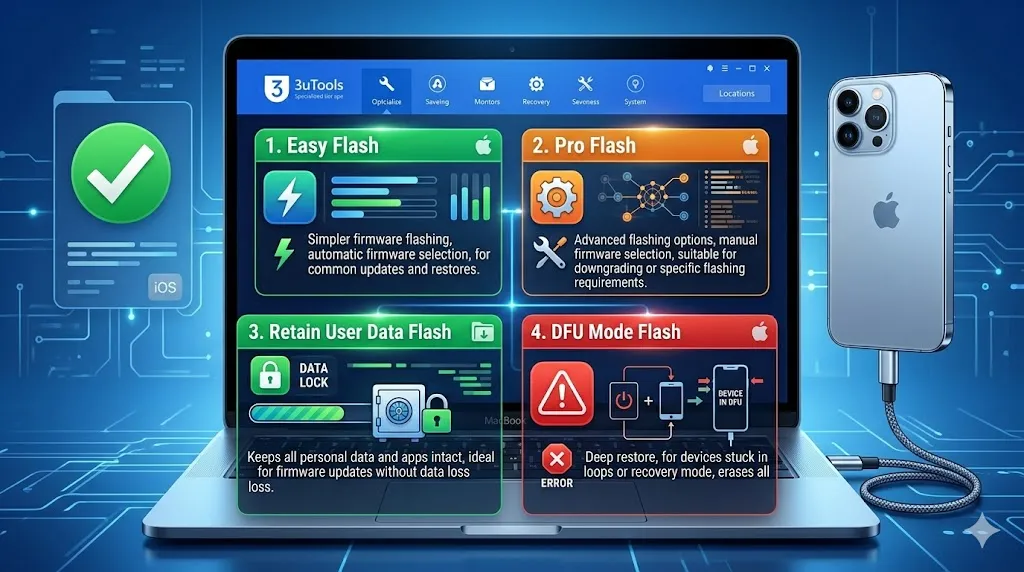
Types of 3uTool Flash and Their Modes in Detail
3uTools offers multiple flashing methods to install or repair the iOS system on devices like iPhone and iPad. These flash types help users upgrade, downgrade, repair system errors, or securely erase device data.
1. Easy Flash
Easy Flash is the simplest option and is recommended for most users. It automatically detects the correct firmware for the device and allows quick system updates or restores. Users can choose to erase data or keep it during the flashing process.
2. Pro Flash
Pro Flash is designed for advanced users and technicians. It allows manual firmware selection, flashing in DFU Mode, and checking SHSH blobs for firmware verification. It also supports advanced features like reserving the baseband while upgrading the system.
3. Multiple Flash
Multiple Flash enables users to flash several iPhone or iPad devices at the same time. This feature is commonly used in repair shops or bulk device management environments.
3uTools Flashing Modes
How to Reset an iPhone via 3uTools
3uTools also provides a direct reset option.
This resets the iPhone and installs a fresh operating system.
How to Forcefully Factory Reset an iPhone
Sometimes a simple reset fixes issues without flashing.
Method 1: Using Settings
- Open Settings
- Tap General
- Select Transfer or Reset iPhone
- Tap Erase All Content and Settings
This resets the device completely.
Interrupting the Jailbreak Process
For iPhone 8 or later:
- Press Volume Up
- Press Volume Down
- Hold Side Button until restart
This forces the phone to reboot.
How to Update iPhone With 3uTools Without Data Loss
If your iPhone is working but needs an update, you can upgrade without deleting data.
This updates the operating system while keeping apps, photos, and messages. However, always create a backup first.
Safety Tips Before Flashing Your iPhone
Before starting the flashing process, follow these precautions:
Backup Your Data
Flashing usually deletes everything.
Backup using:
Charge Your Device
Ensure the battery is above 50%.
Use Original Cable
Using genuine cables prevents connection errors.
Do Not Disconnect Device
Interrupting the flashing process may damage the system.
Alternative Method: Repair iOS Without Data Loss
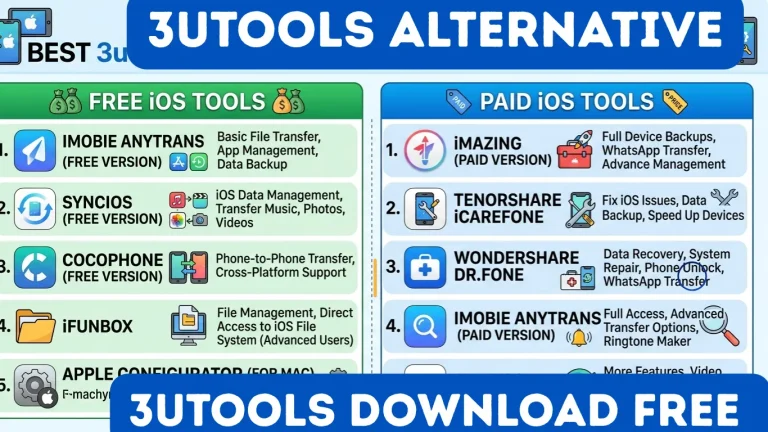
Another popular repair tool is UltFone iOS System Repair. This software can fix over 150 iOS issues.
Standard Repair
Fixes common system problems without deleting data.
Deep Repair
Fixes serious system corruption but erases data. It works well for problems like:
Common iPhone Problems Fixed by 3uTools Flash
Flashing can solve many issues such as:
In most cases, reinstalling the operating system fixes these errors.
Is Flashing an iPhone Safe?
Flashing is generally safe if done correctly.
However:
Always download compatible firmware for your iPhone model.
Conclusion
Flashing an iPhone may seem difficult, but 3uTools makes it simple and effective. It helps fix issues like being stuck on the Apple logo, disabled iPhones, and system crashes by reinstalling iOS.
In this guide, we explained how to download 3uTools, flash iPhones without iTunes, factory reset devices, and update iOS without data loss. If done correctly, flashing at home can save both time and money compared to visiting a repair shop.
Just remember: always backup your data, use correct firmware, and keep your device connected during the process for a safe and successful repair.