How To Use 3uTools To Change iPhone Location
Do you want to pretend you are in a different city? You can do this easily with your iPhone today. Many people want to change their GPS spot for fun games. Some people just want to keep their real home address very private. You can use a special program on your computer called 3uTools. This guide will teach you every single step to change your location. We will use simple words so everyone can understand this process
Can 3UTools Change iPhone Location?
Yes, 3uTools is a very powerful tool that can change your location. It works by sending fake GPS data to your mobile device. Your iPhone will think it is actually in a new place. This works for maps and most apps on your phone. It is a free program that many people use every day. You just need a computer and a USB cable to start.
Is There a Way To Alter Your iPhone Location?
Yes users can alter iPhone location using computer software tools like 3uTools virtual location feature available on Windows systems now.
Some people also use mobile applications but those often require jailbreak or advanced permissions setup for full access control methods. Computer based tools remain safer and more stable for changing GPS location on iOS devices generally preferred approach today users.
Virtual location features simulate movement allowing apps to believe user is physically in different places around the world globally now.
However accuracy depends on software stability and device compatibility with operating system versions installed across different devices today widely used. Location changes can be reversed easily using restore true location option inside 3uTools interface whenever user wants without issues today.
Apple does not officially support location spoofing so results may vary across system updates and security patches applied regularly often.
Users should always use such tools responsibly and for testing purposes only in safe environments according to guidelines strictly followed.
So altering iPhone location is possible through software tools but requires proper setup and understanding for effective results overall users.
How to Change Location by Virtual Location on 3uTools?
Follow these simple steps to move your GPS to anywhere.
Step 1: Download the Software
Go to the official 3uTools website to get the latest version. Always use the official site so your computer stays very safe. Install the program and open it up on your desktop.
Step 2: Connect Your iPhone
Take your original USB cable and plug it into the computer. Plug the other end into your iPhone charging port now. Tap “Trust” on your iPhone screen if a message pops up.
Step 3: Find the Toolbox
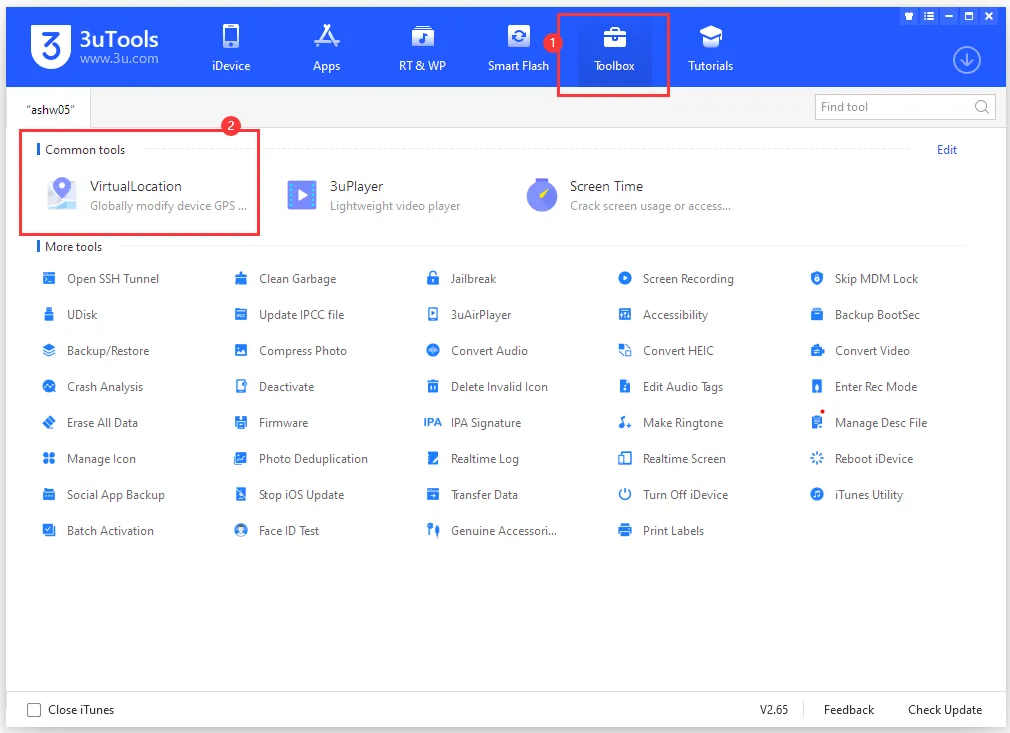
Look at the top of the 3uTools window for “Toolbox.” Click on that button to see many different helpful tools. Look for the icon that says “Virtual Location” and click.
Step 4: Choose Your New Spot
A map will appear on your computer screen very soon. You have three ways to pick your new fake spot.
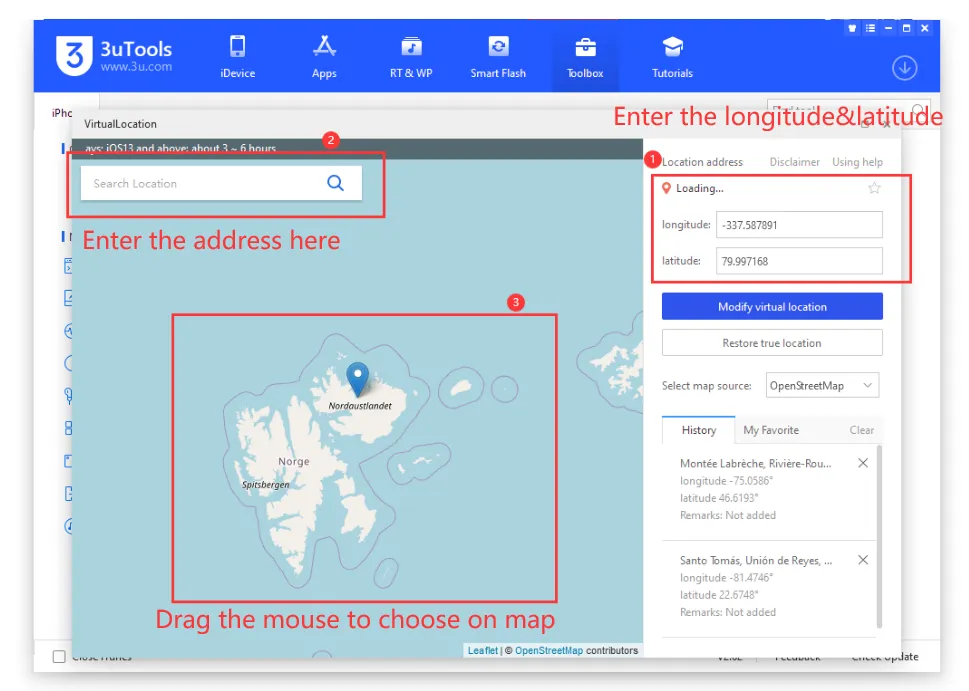
- You can type the numbers for longitude and latitude.
- You can type a specific address in the search bar.
- You can just click a spot on the map.
Step 5: Modify the Location
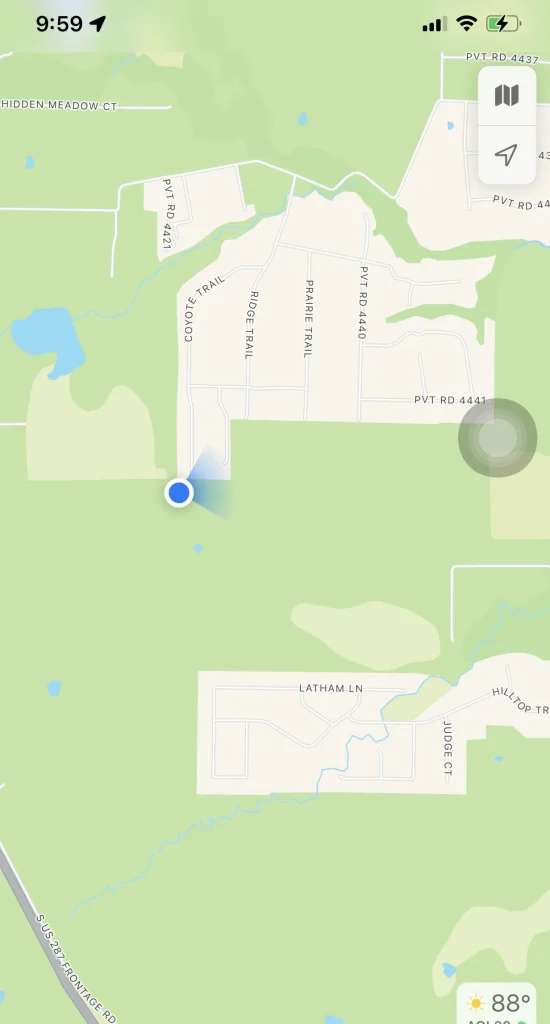
Once you pick a spot, click “Modify virtual location.” A small message will tell you if it worked or failed. If it says “Succeeded,” your iPhone is now in that spot. Open your Map app on the phone to check it.
How to Restore Your Real Location
Getting back to your real home is very simple to do. You can click “Restore true location” inside the 3uTools program. Or, you can just turn your iPhone off and on. Restarting the device always resets the GPS to the real spot. Your phone will find the real satellites once it boots up. This is the safest way to go back to normal.
How to Set Fake Location in iPhone?
Setting a fake location requires a few specific steps to work. First, you must have the 3uTools software on your PC. You will also need to trust the computer on your phone. Once the connection is stable, you open the virtual tool. You pick a spot on the world map and click. Your blue dot on the map will move instantly. It is like magic happening right on your phone screen.
Important Tips for Success
Always remember to keep your iPhone screen on and unlocked. If the screen goes black, the process might stop working. Do not move the cable while the map is loading. Using a laptop? Make sure it is plugged into a power outlet. This ensures the connection stays strong for the whole time. Now you are ready to explore the world from home!
Why is 3uTools Not Changing My Location?
Sometimes the location might not change when you click the button. This often happens if your iPhone screen is currently locked. You must keep your phone awake and unlocked during the process. Another reason could be a bad USB cable connection today. Make sure you are using an original Apple cable for this. Sometimes you need to restart the 3uTools program to fix it. If it fails, check your internet connection on the computer.
Troubleshooting Common Issues
Device Not Detected
- Ensure drivers/iTunes are installed
- Try a different USB port or cable
Location Not Changing
- Restart the app
- Reconnect the device
- Ensure “Modify Virtual Location” was clicked
Apps Still Showing Real Location
- Restart the app using GPS
- Reboot your iPhone
Conclusion
3uTools is one of the simplest and most accessible tools for changing your iPhone’s location without jailbreaking. While it may not have the advanced features of paid alternatives, it’s more than enough for casual users, developers, and testers.
Just remember to use it ethically and be aware of app policies regarding location spoofing.